A Guide for Coaches
The Complete Guide to Practicing Coaching Conversations with AI Clients
Practicing coaching conversations is one of the most important — and most difficult — parts of developing as a coach. Building proficiency and competency with sales calls, onboarding sessions, and real client conversations requires repetition. But finding consistent, realistic role-play opportunities isn’t easy. This guide explains how to use Coaching Practice, an AI-powered coaching simulator designed for health and life coaches who want to build real-world coaching skills. Whether you're preparing for a certification, refining your motivational interviewing skills, or strengthening your discovery call flow, this guide will walk you through how to practice effectively.
Why We Built This
Coaching skills sharpen through repetition — and repetition requires practice. But finding the right practice partner can be challenging. Friends and family can be generous with their time, however, they can’t always roleplay a resistant client in your niche, a high-stakes discovery call, or a person navigating genuine ambivalence.
We built Coaching Practice because we needed it ourselves. As coaches, we wanted a way to practice sessions at anytime — without scheduling, without pressure, and without worrying about “getting it right” in front of a real client.
By flipping voice AI technology from coaching people to simulating clients, we created a space where coaches can build confidence through unlimited, judgment-free reps. AI clients respond to your approach in real time, allowing you to experiment safely, stretch your skills, and develop confidence before stepping into real sessions.
This guide walks you through everything you need to get started and make the most of your practice time.
Table of Contents
Section 1
Getting Started
Creating Your Account
Visit coaching-practice.com and click Try Now for Free. You’ll create an account with your email and password. No credit card is required to get started.
During onboarding, you’ll be asked to:
- Accept the Terms of Service and Privacy Policy
- Opt in or out of marketing emails
Your Dashboard — The Client Library
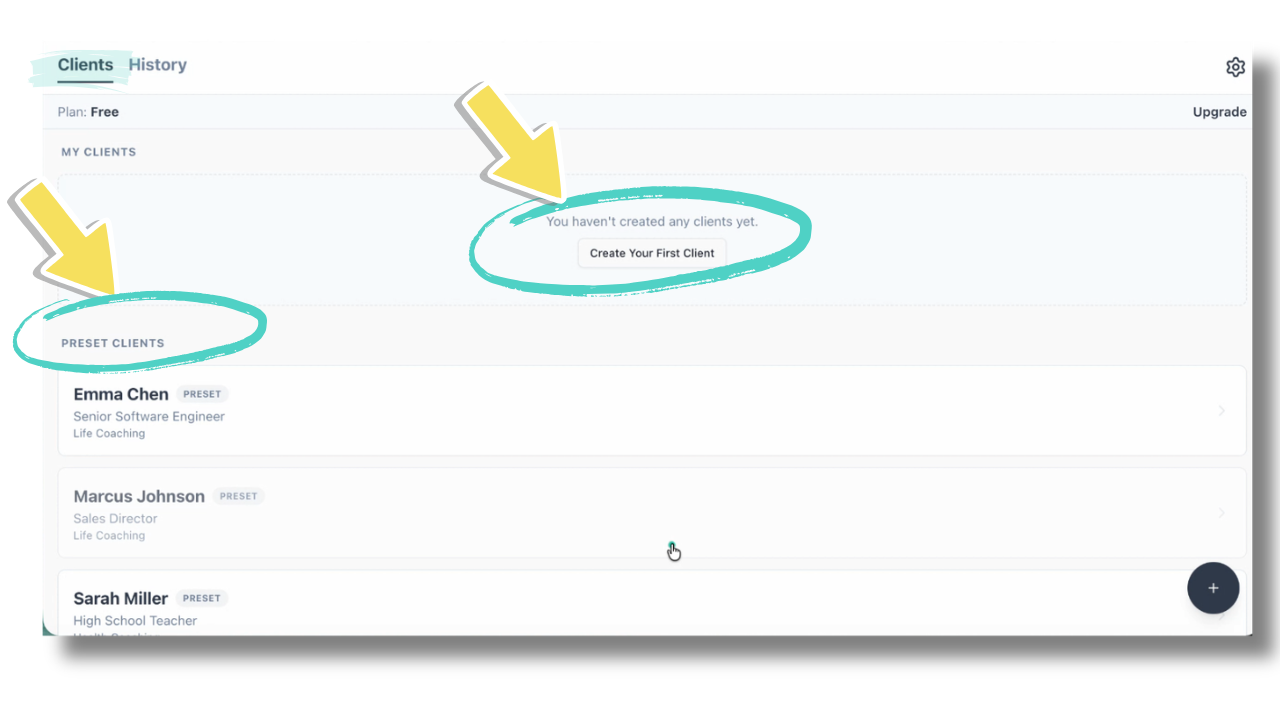
After signing in, you’ll see your Client Library. This is your home base. From here you can:
- See all the preset clients
- Create a customized client
Accounts on the Free plan will see a prompt to try a preset client scenario with your 10 free trial minutes.
The Client Library
You have two choices. To start a session with a preset client or to create a customized client.
Section 2
Preset Clients
Start with a Preset Client
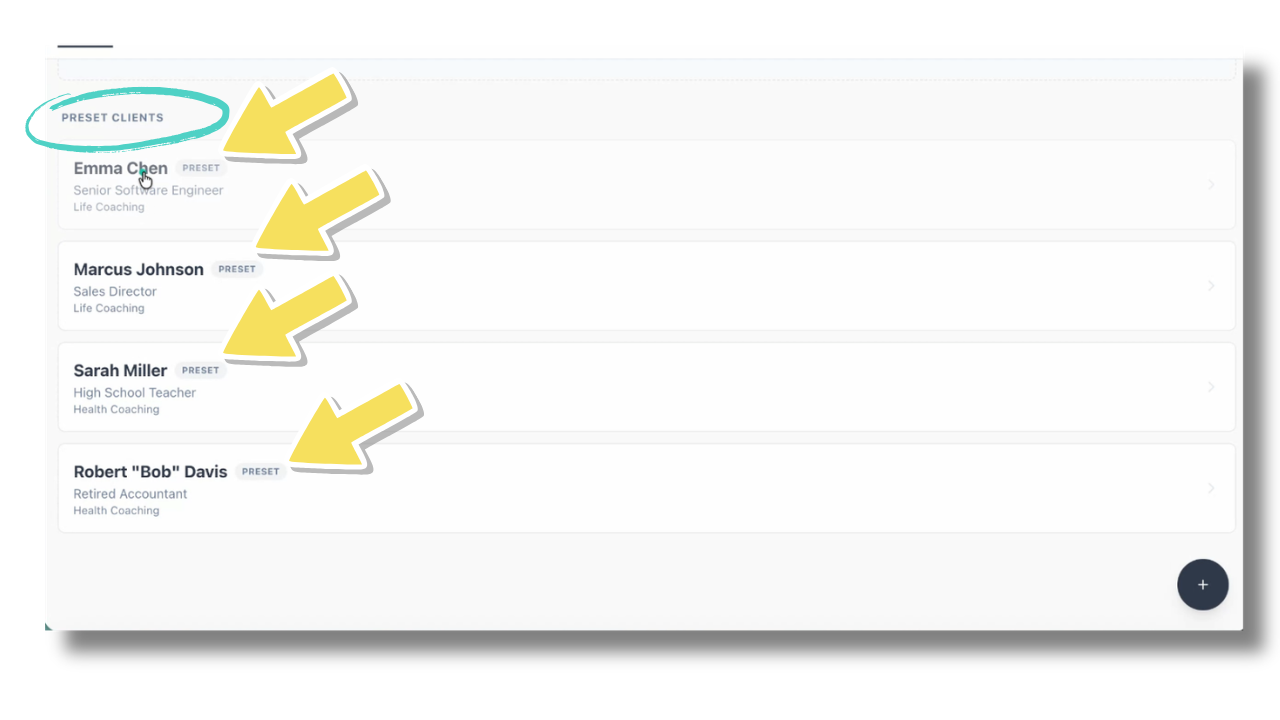
In the Client Library, begin with one of the four preset clients (two life coaching and two health coaching). Each preset client includes everything you need to begin: the client's goals, current situation, motivations, obstacles, background, age, job, and gender.
Preset clients are the fastest way to start practicing coaching. Simply choose one and begin your session.
Upgrading to Pro or Premium unlocks the ability to create fully customized client profiles.
Start with a Preset Client
There are four present clients to choose from.
Choosing a Difficulty Level
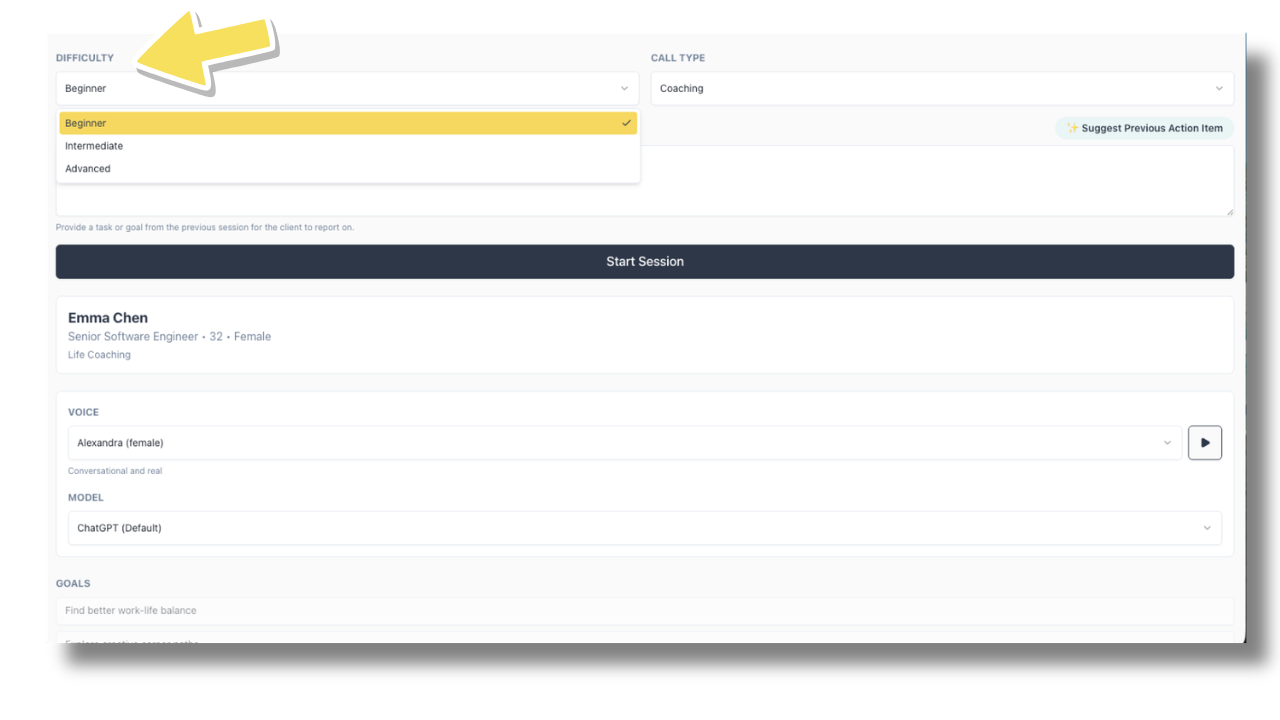
After selecting a preset client, choose your session difficulty: Beginner, Intermediate, or Advanced.
Beginner clients are easier to work with. Intermediate offers a balanced challenge. Advanced clients may present more complexity or resistance.
There's no judgment here. This is your practice space. Select the level that matches how much you want to stretch your skills today.
Choosing a Difficulty Level
There are three levels of difficulty: Beginner, Intermediate, or Advanced.
Pick a Session Type
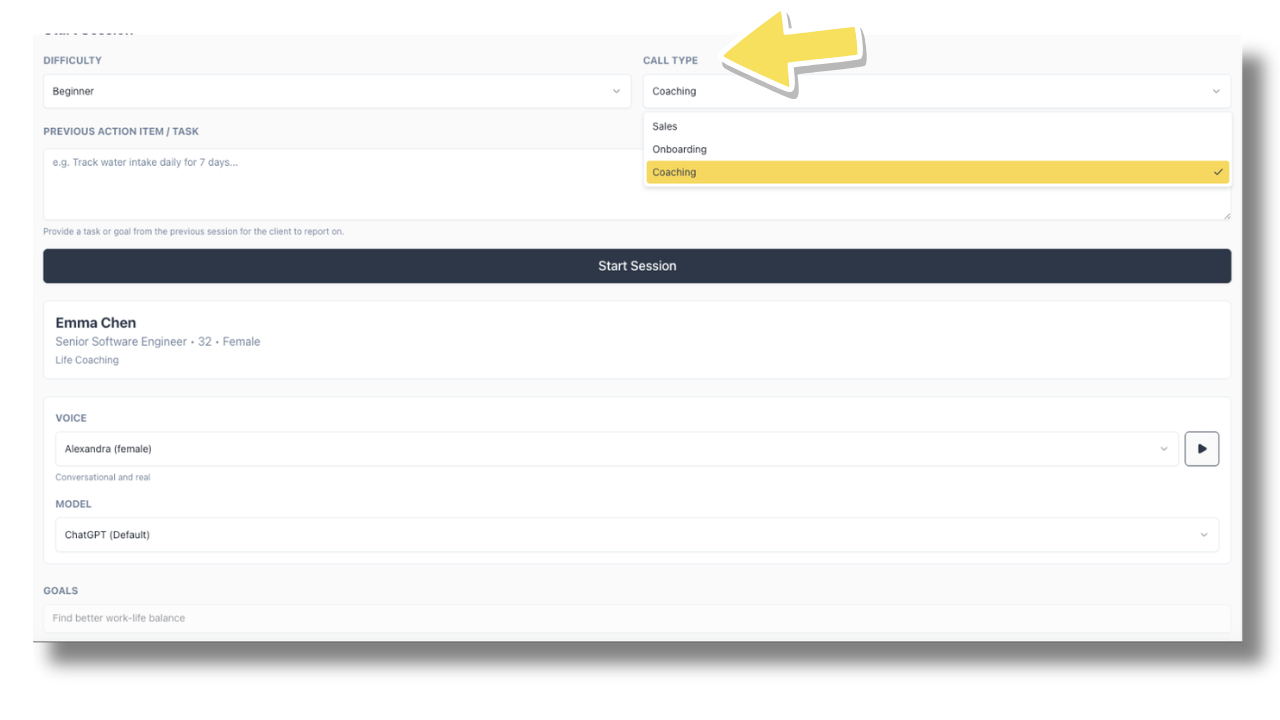
Before starting, choose the type of session you want to practice:
- Sales Call — Practice discovery call conversations.
- Onboarding Session — Practice welcoming a new client and setting expectations.
- Coaching Session — Practice working directly on the client's goals and challenges.
Each session type strengthens a different part of your coaching skillset.
Pick a Session Type
There are three session types: Sales Call, Onboarding, or Coaching.
Previous Action Item (Coaching Sessions Only)
If you're running a coaching session, you can add a previous action item to simulate an ongoing client journey.
You can either write your own previous action or click Suggested Previous Action to have the app generate one for you.
Keep in mind: sessions are designed as one-off practice experiences. The app does not carry client progress from session to session.
Previous Action Item
(Coaching Sessions Only) Enter a previous action or let the app suggest one.
.png)
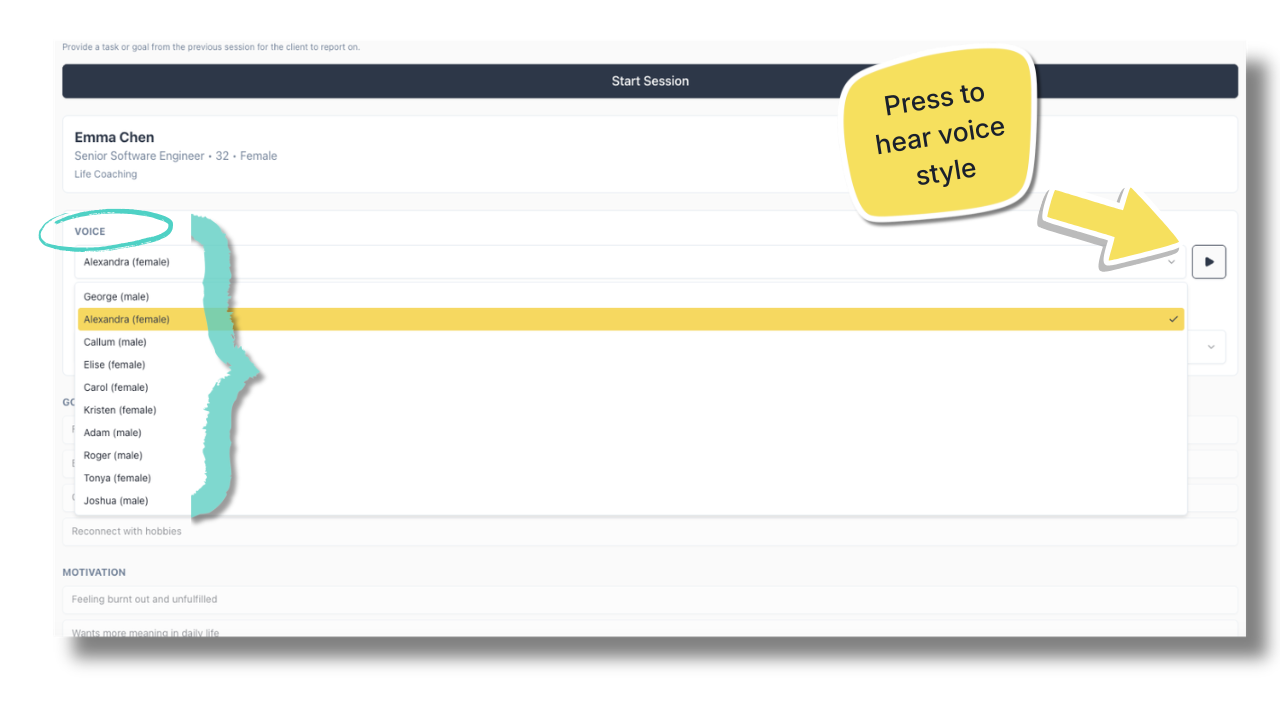
Choose a Voice
Select the voice your client will use during the session. You can preview each option before choosing. Selecting a voice that matches your client profile helps create a more realistic practice experience.
Choose a Voice
Match a voice to your client.
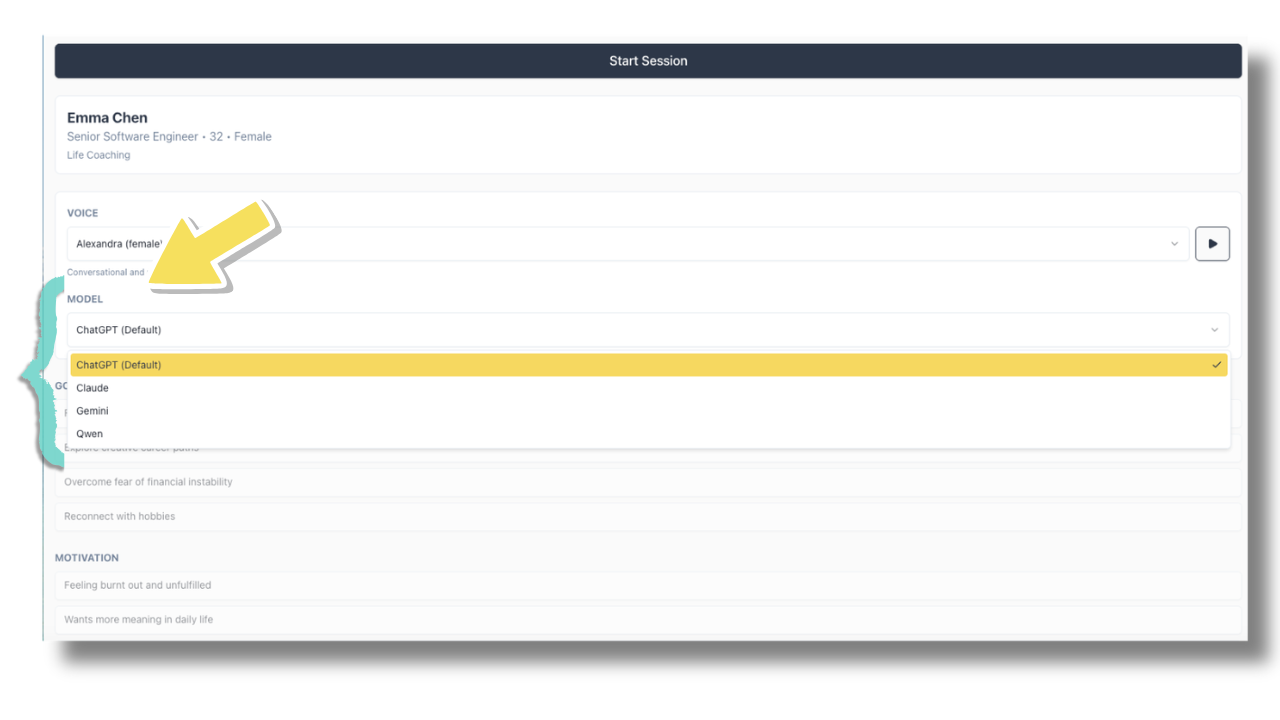
Choose an AI Model
As a premium user, you can choose which AI model powers your client conversation. All models follow your customized client profile. What changes is how the client communicates and responds during your session. If you want variation while practicing, try switching models.
AI Models: What's the Difference?
| Model | Style | Best For |
|---|---|---|
| ChatGPT (Default) | Reflective, emotionally aware, articulate | Stretching your motivational interviewing skills and practicing deeper reflections |
| Claude | Natural, grounded, realistic | Working with real-world themes |
| Gemini | Direct, steady, and slightly predictable | Practicing sessions with fewer surprises |
| Qwen | Mechanical, simpler | Strengthening flexibility |
Choose an AI Model
Add variety to your coaching sessions.
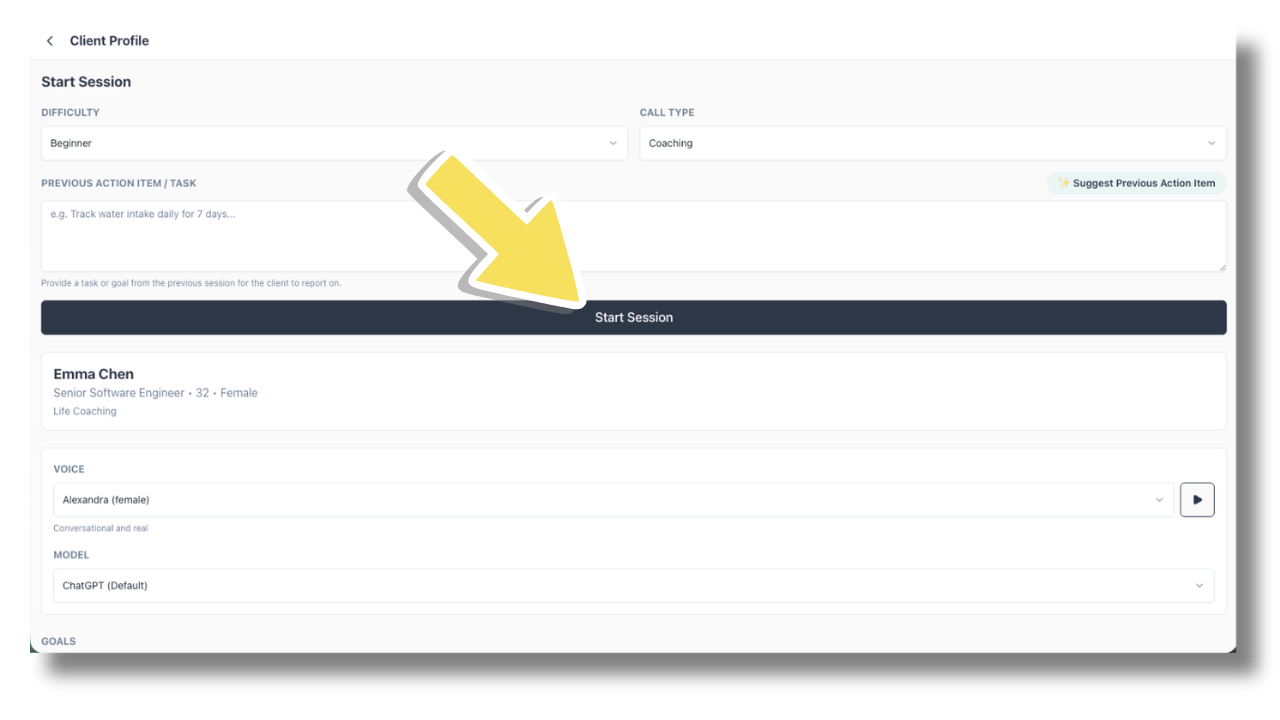
Start Your Session
When you click Start Session, the app prepares your client and selected session settings. You may notice a brief pause while everything loads. This is normal. Your live coaching conversation will begin shortly.
Start Your Session
After clicking Start Session, please allow up to 20 seconds for the session to begin.
Section 3
Creating Clients
How Client Creation Works (Pro & Premium)
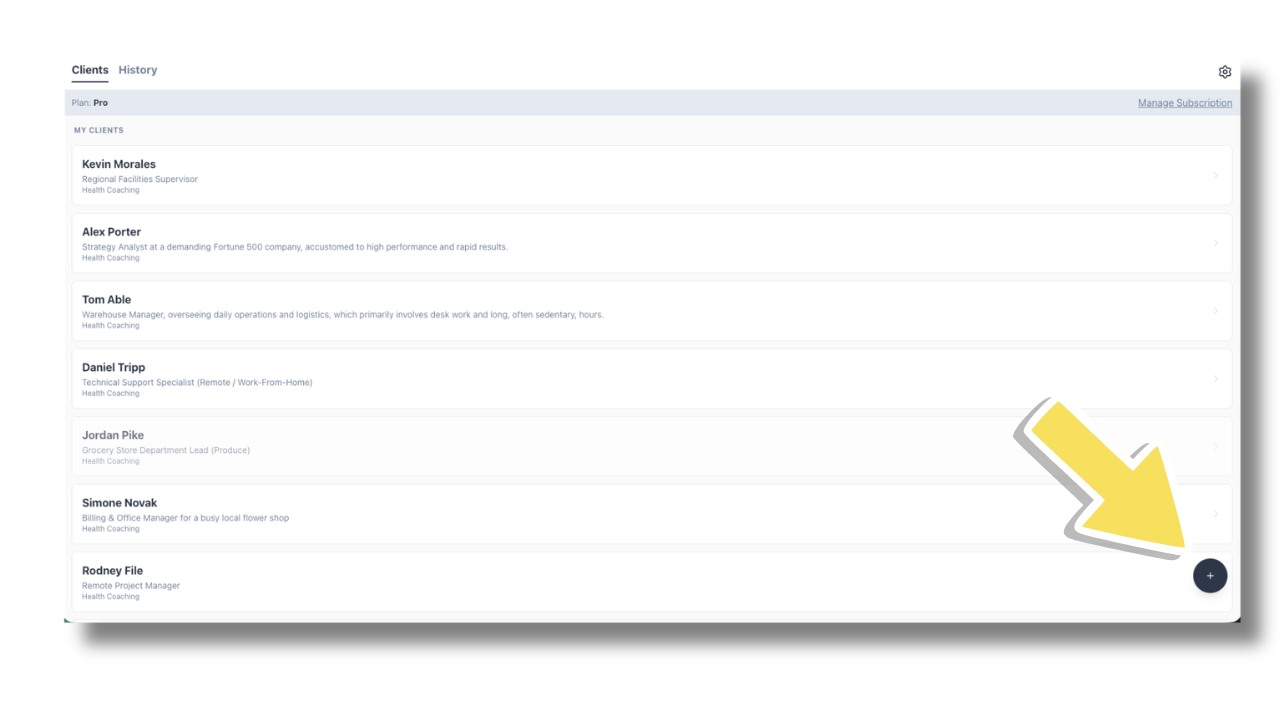
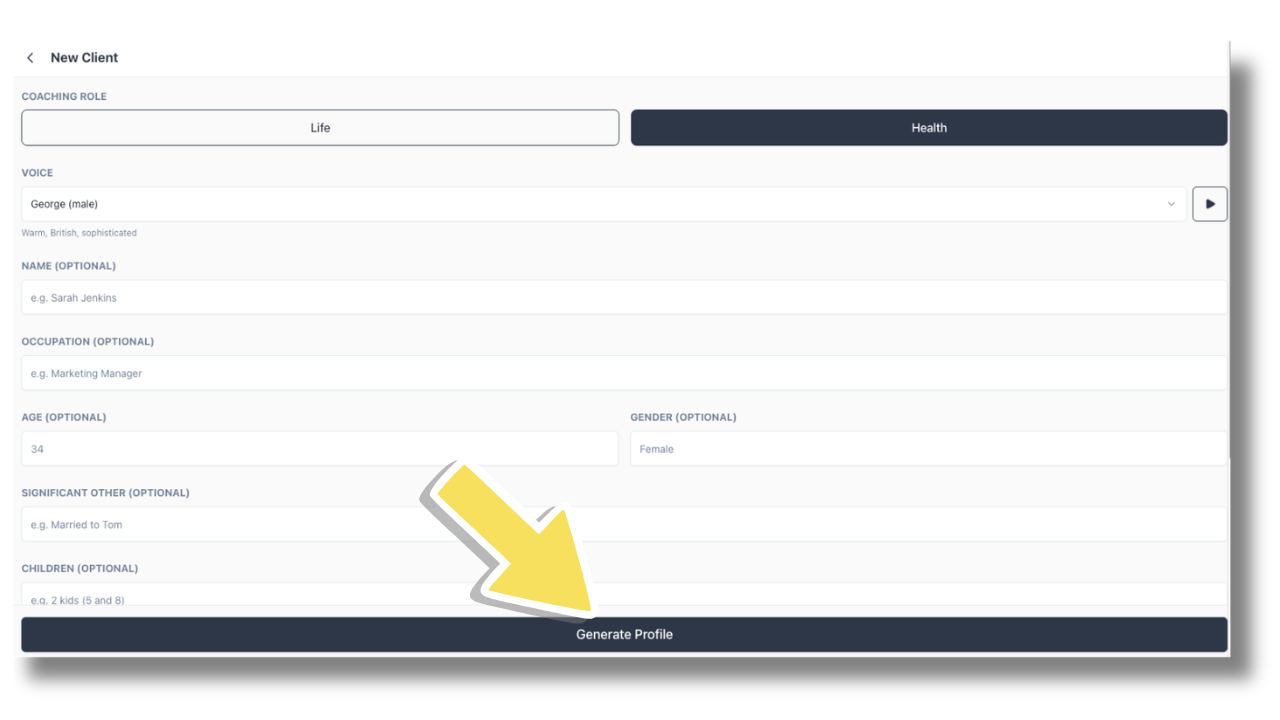
On Pro and Premium plans, you can create fully customized AI clients. Tap the + button on your Client Library to open the client creation form. All fields are optional — fill in as much or as little as you want.
Available Fields
- Role: Life Coaching or Health Coaching
- Name: Client's name
- Gender: Client's gender
- Occupation: What they do for work
- Age: Client's age
- Family: Significant other, children, or relevant family dynamics
- Client Description: Goals, motivations, obstacles, and background
- Situation: What is happening right now, and why they hired you
Create your Customized Client Profile
To start, in the Client Library, click the + button.
Writing a Strong Client Profile
Think of this section as designing the challenge you want to practice.
Helpful details include:
- What the client wants (their goals)
- Why it matters to them (their motivation)
- What's getting in the way (their obstacles)
- What's currently happening in their life (their situation)
You can write short bullet points or full paragraphs. The system will organize and expand your input into a complete, working client profile.
Customized Client Information Form
After clicking the + button, you will see this form. Begin putting your client information in. Once down, click Generate Profile.
Taking Your Custom Clients to the Next Level
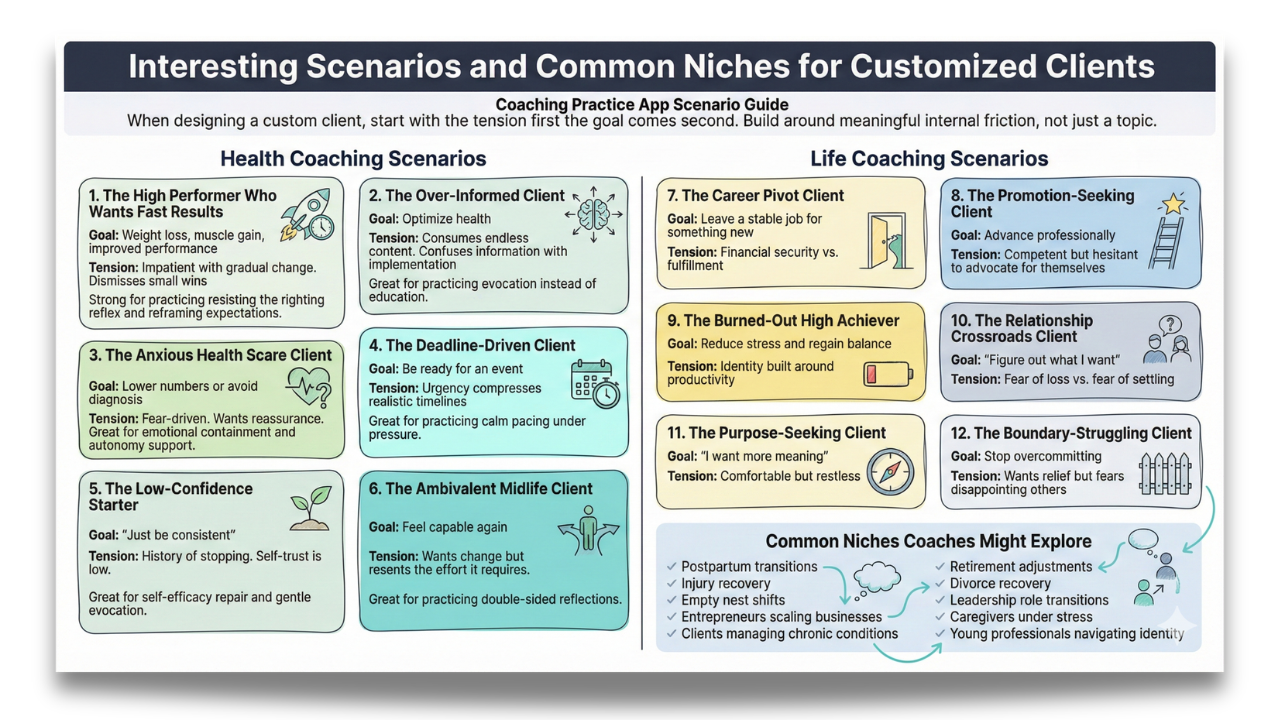
Once you understand how to create a client profile, the next step is designing clients with depth.
The most powerful practice scenarios grow from meaningful internal tension. A client may want to change while also feeling hesitant, impatient, uncertain, or overconfident. That tension creates a dynamic coaching environment.
Strong custom clients include:
- A clear goal
- A defined internal friction
- A predictable behavioral pattern under pressure
Designing clients this way strengthens your discernment, presence, pacing, and support for autonomy as the practicing coach. The richer the human context, the more meaningful the practice.
Taking Your Custom Clients to the Next Level
If you'd like to add more depth to your custom client, start with one of the tensions below, or create your own.
AI Profile Generation
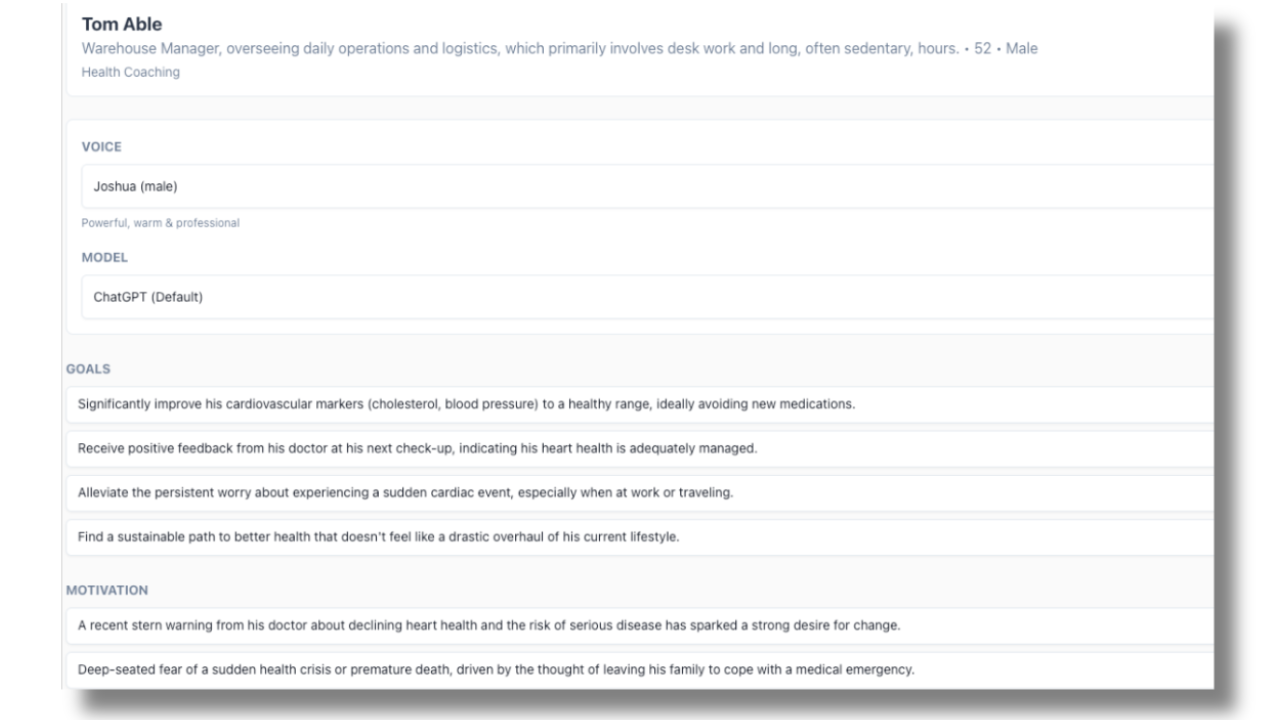
Once you submit the form, AI generates a complete, detailed client profile — filling in personality traits, goals, motivations, and obstacles. You can review the full profile before starting a session.
- Fill in the client form and tap Generate Profile
- Review the AI-generated profile
- Edit any details you want to change
- Tap Start Session when you're ready
Example of a Generated Client Profile
A sample of how AI expands your client description into a profile with clear goals, motivations, and context so the AI client can respond during your session.
Section 4
Running a Session
Starting a Session
In your Client Library, select your client, choose your difficulty level, and configure your session settings. Review their details, then tap Start Session. The app may take up to 20 seconds to prepare your session. This is normal. Once ready, you’ll see confirmation that you are live with your selected AI client.
⚠️ Before you start: Make sure your microphone is enabled in your browser or app. You’ll be prompted the first time if permissions haven’t been granted.
Understanding the Live Session Screen
This screen confirms your session is live, shows that the app is listening, and provides access to the client profile during the conversation.
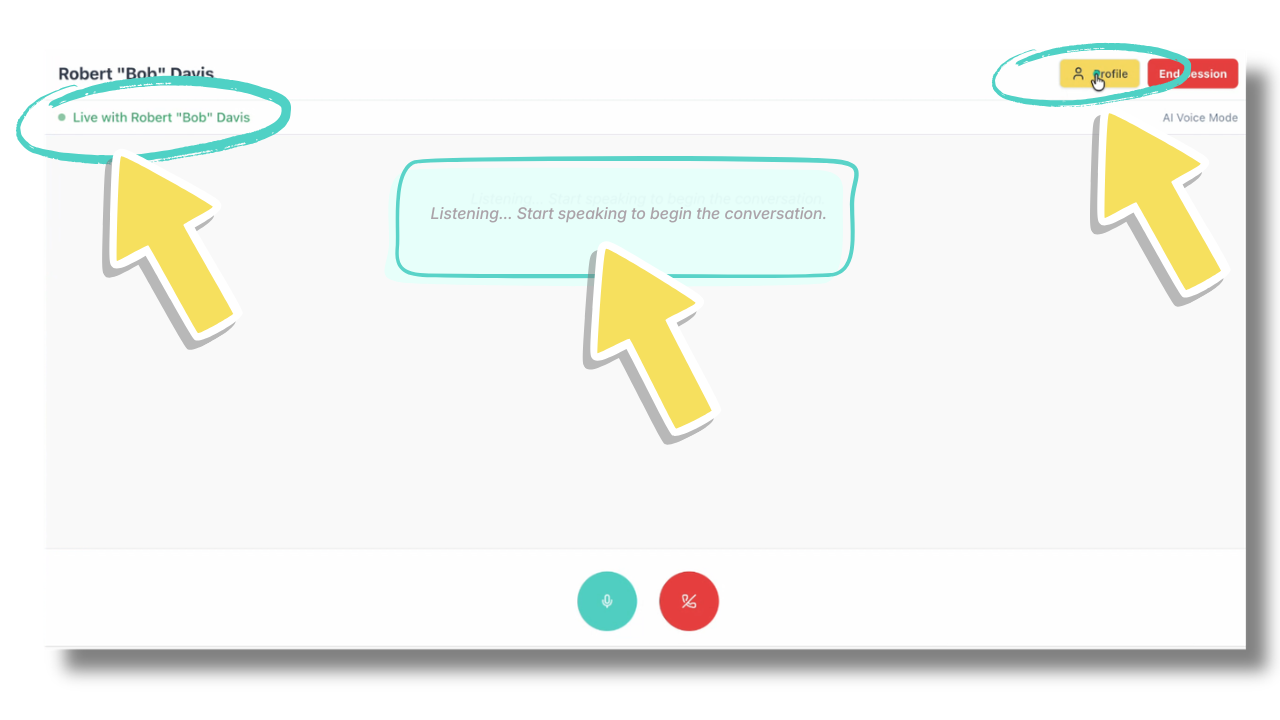
Quick Check: Client Profile During a Session
Tap the Profile button on the top right during a session to quickly review the client's goals, background, and previous action items.

During the Session
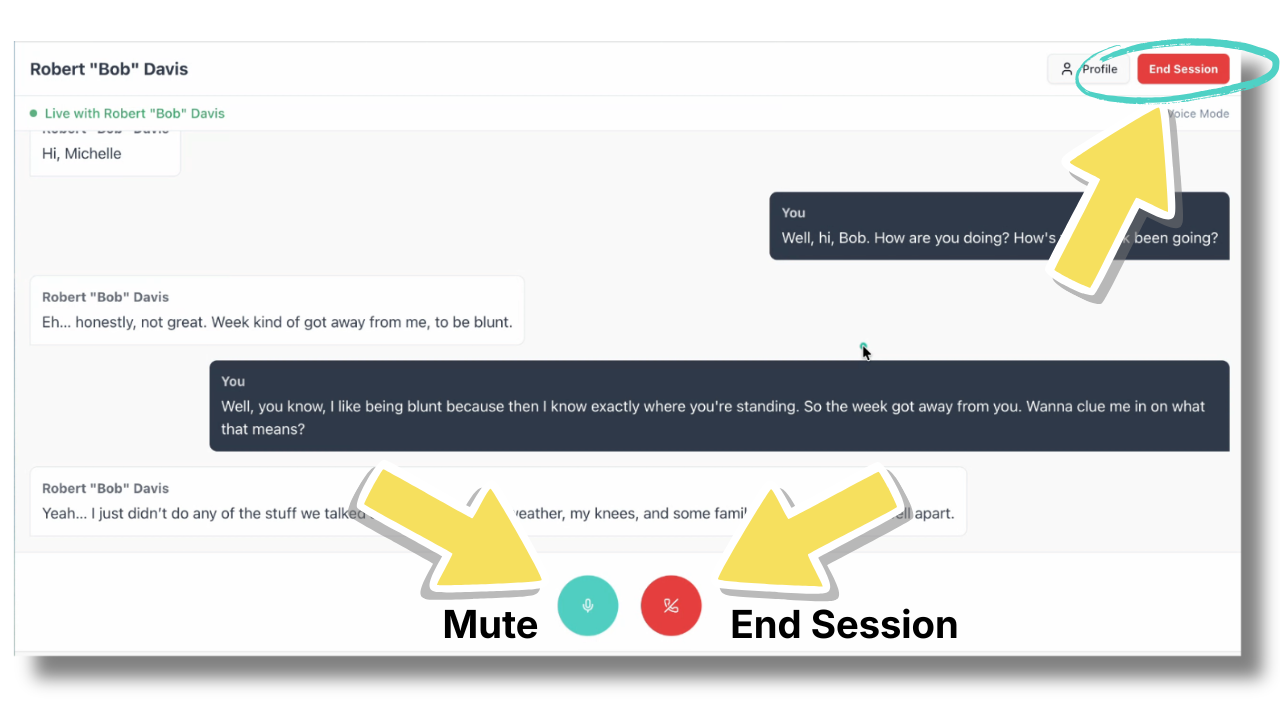
You’ll have a live, real-time voice conversation with your AI client. The session screen shows:
- A live transcript of the conversation
- A Profile button (to quickly review client details)
- A Mute button
- An End Session button
Your AI client is designed to respond realistically to your coaching approach — they’ll push back, share ambivalence, or open up depending on how the conversation develops.
Session Controls During a Live Conversation
Use the mute button to pause your microphone, or end the session using either of the available End Session buttons.
Connection & Flow
As you and the AI client speak, a real-time transcript is displayed on-screen. The full transcript will also be saved at the end of your session.
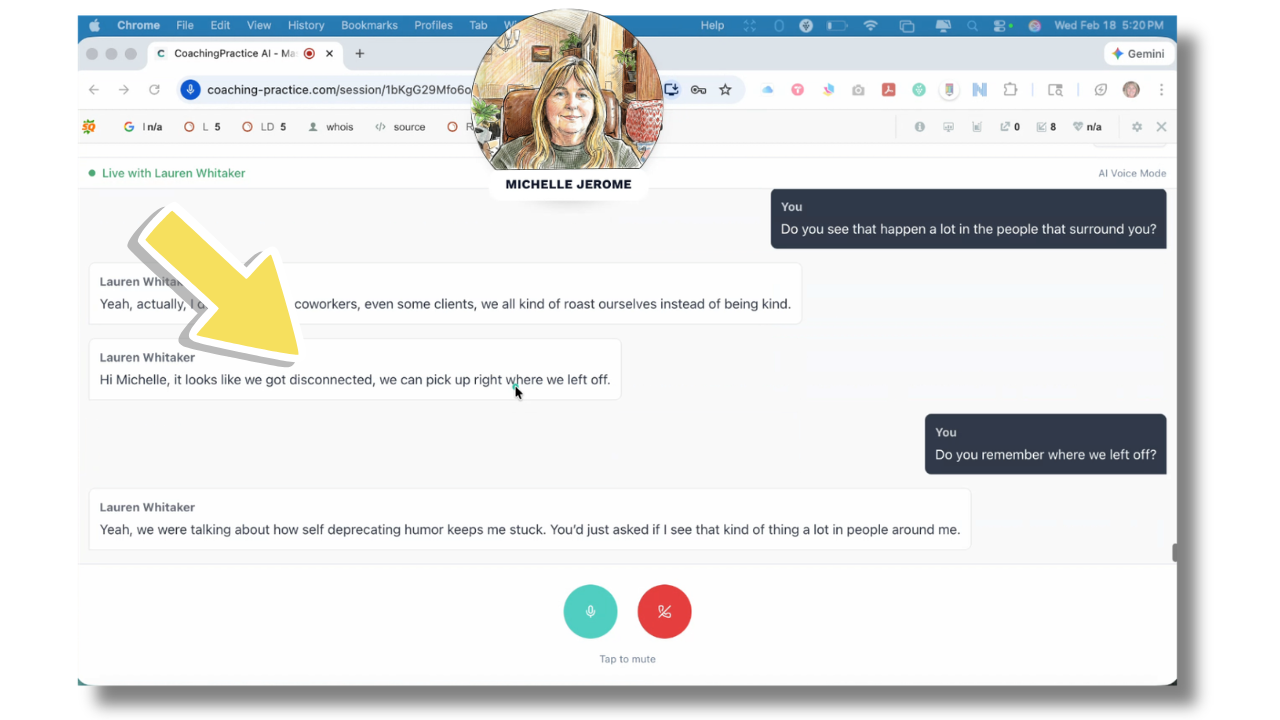
In some cases, a brief pause in the connection may occur. If this happens, the client will acknowledge the interruption and resume the conversation automatically.
If Your Session Gets Interrupted
If the conversation is interrupted, the AI client will acknowledge it and automatically resume where you left off.
⚠️ Important: Choose a Quiet Environment. Because the session uses your microphone, background noise may be picked up and interpreted as speech. For the best experience, practice in a quiet space with minimal distractions.
Getting the Most Out of Your Coaching Practice Sessions
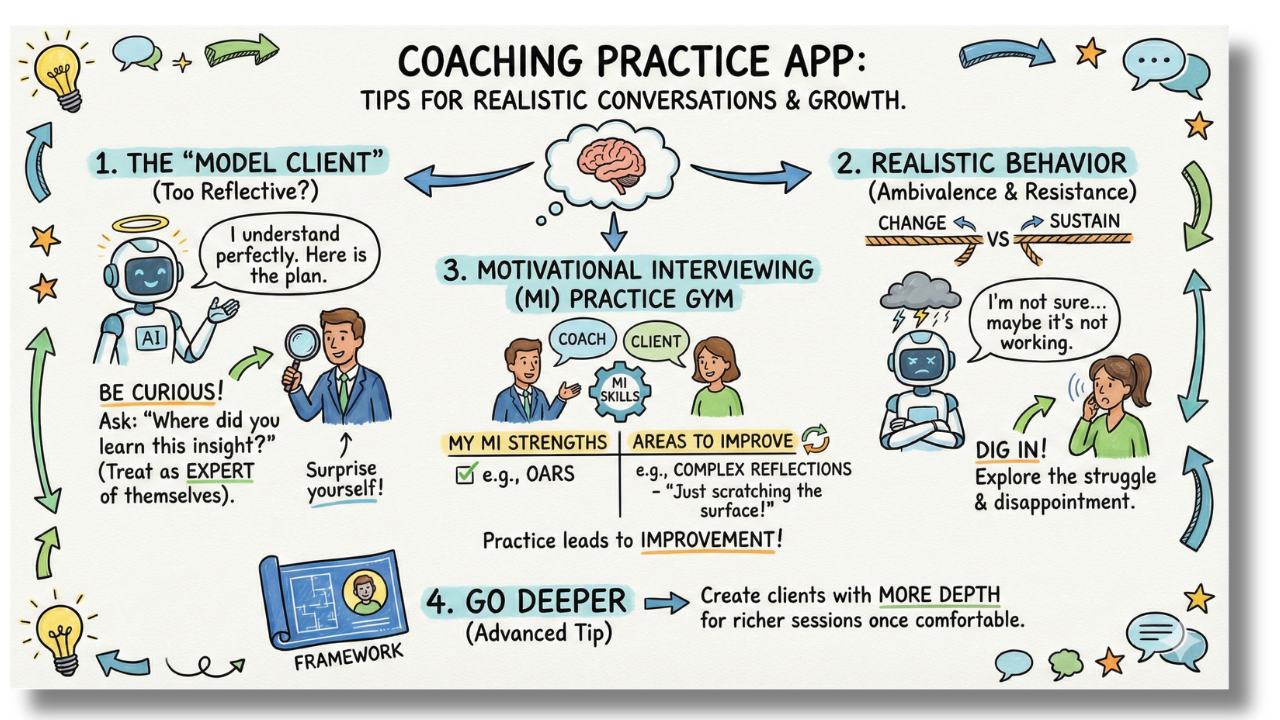
The AI client may sometimes feel like a “model client”, highly reflective or quick to agree. When this happens, stay curious. Treat the AI client as the expert and ask where their insight comes from.
At other times, the client may show ambivalence or resistance. Use these moments to practice Motivational Interviewing skills and notice where you feel strong and where you want to improve.
As your confidence grows, build a customized client base with more internal tension for deeper, more challenging practice.
Getting the Most Out of Your Coaching Practice Sessions
As you practice, you’ll notice AI clients can behave in different ways.
Ending a Session
Tap End Session when you’re done. You’ll be guided to your Session Summary page. This is where reflection and learning take place. Use this space to capture your thoughts.
The app will:
- Save your full session transcript
- Run an AI analysis of your coaching
- Generate feedback on what went well and areas to improve
- Redirect you to your Session Summary
Over time, these insights help you recognize patterns in your strengths and areas for improvement.
Section 5
Session Summary & Feedback
Reading Your Feedback
After every session, you’ll see a Session Summary that includes:
- Date, duration, and client name
- A place to write notes
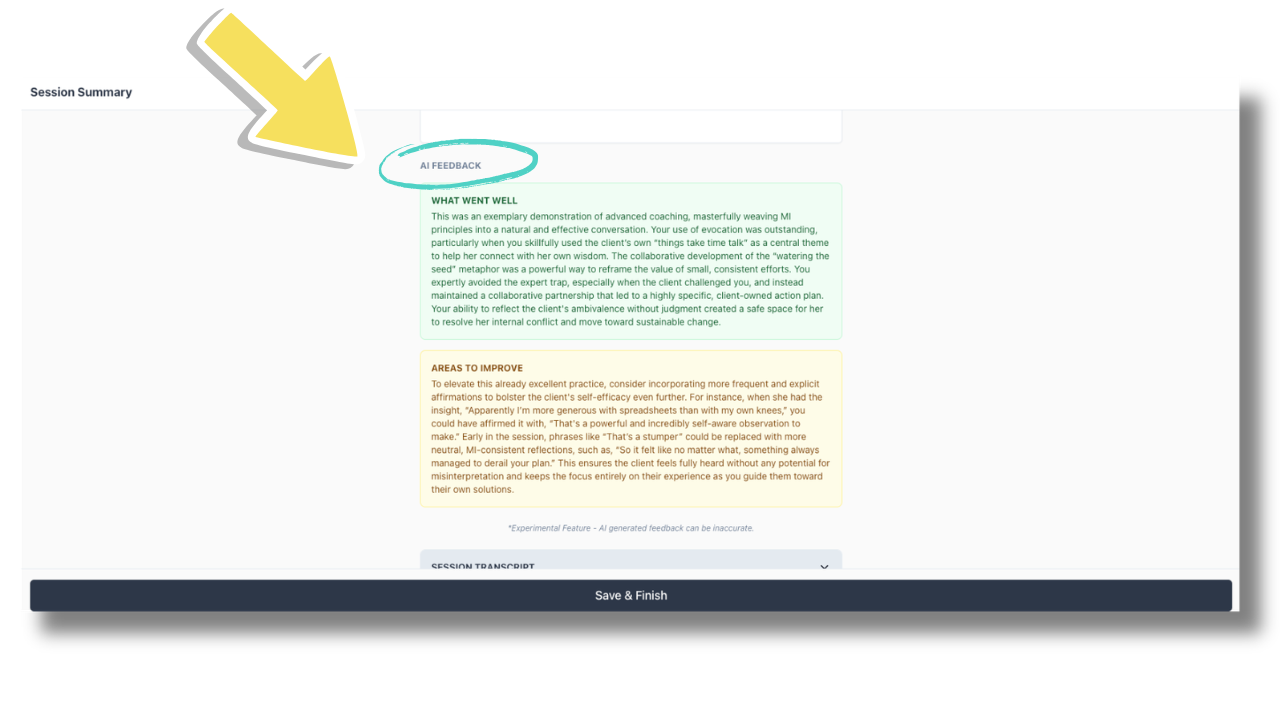
- What Went Well — specific moments and techniques the AI recognized as effective
- Areas to Improve — suggestions for your next session
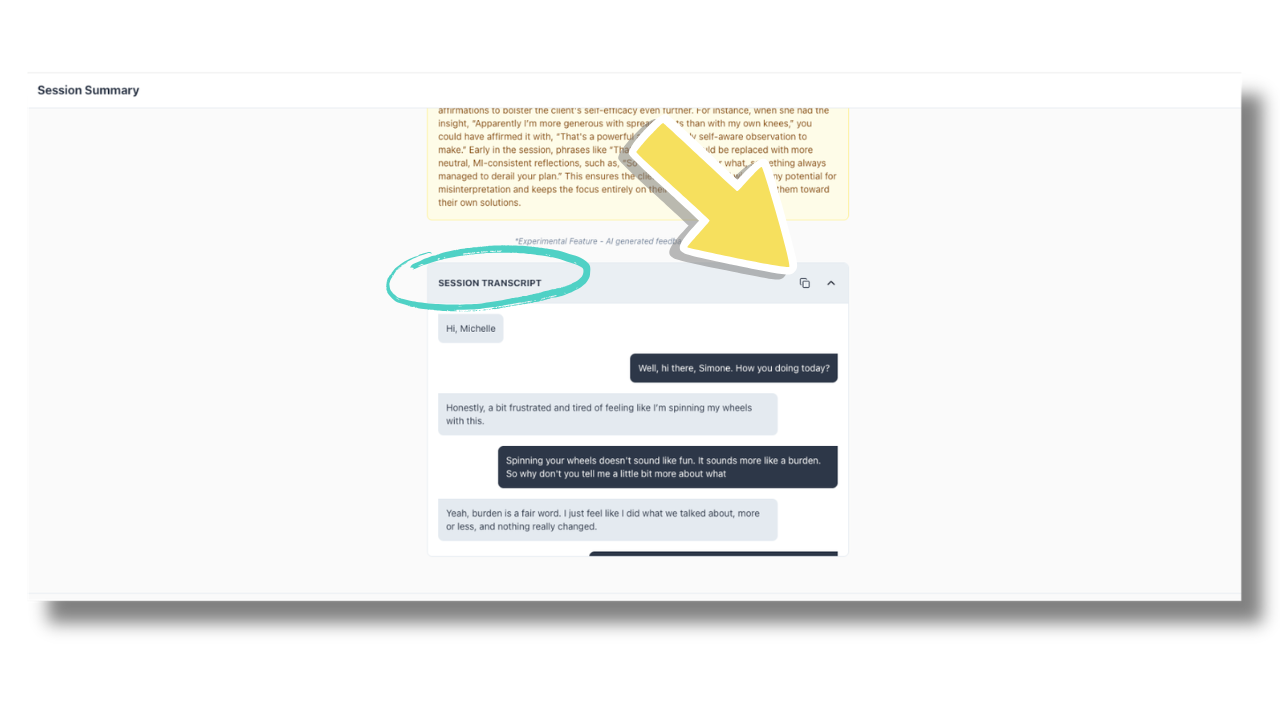
- Your full session transcript (collapsible)
Session Summary Overview
After ending your session, use this page to write personal notes, generate AI feedback, review the transcript, and save your session. Select Generate Feedback to receive your coaching analysis.
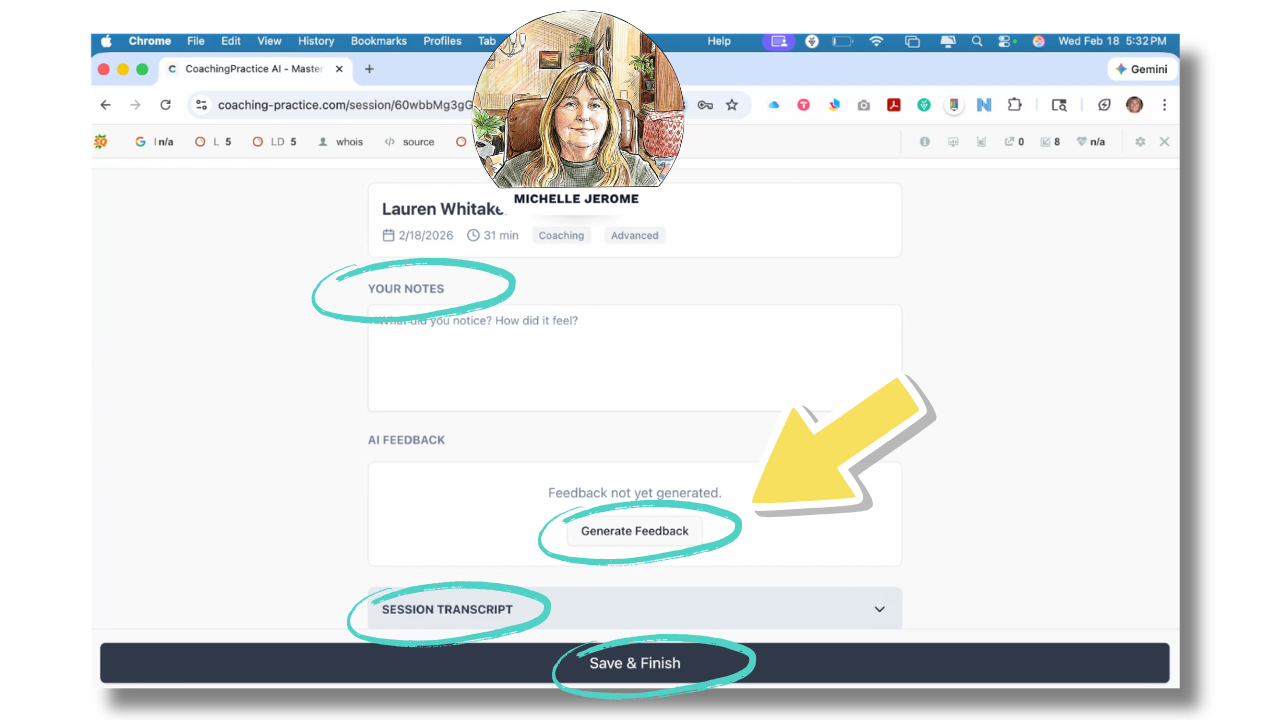
⚠️ You must click Generate Feedback for feedback to appear. Very short sessions may not produce enough data for feedback generation. If feedback does not generate unexpectedly, please submit a support ticket or email jeff.lindbom@jefflindbomwellness.com
AI Feedback
Once generated, the feedback highlights what went well and areas for improvement. Use it to identify patterns in your coaching approach and refine your skills over time.
Adding Your Own Notes
Above the AI feedback, there's a Coach Notes field where you can write your own self-reflection. This is saved to the session record so you can come back to it later.
Reviewing Past Sessions
Tap History from the navigation menu to see all your past sessions. Tap any session to re-read the transcript, review feedback, and revisit your notes.
Reviewing Past Sessions (History)
Access all previous sessions in the history tab. Click on an AI client name to review transcripts, notes, and AI feedback.
.png)
Reviewing & Copying Your Session Transcript
Your full session transcript is saved automatically. You may expand and copy it if you'd like to review, track progress, or store it for personal reference.
Section 6
Plans & Pricing
Subscription Tiers
Coaching Practice uses a minutes-based subscription model. Your minutes represent the time you spend in live voice sessions.
| Free | Pro — POPULAR | Premium |
|---|---|---|
| $0 | $24.99/mo | $49.99/mo |
| 10 min trial | 99 min/month | 199 min/month |
| Preset clients only | Custom client creation | Custom client creation |
| AI session feedback | AI session feedback | AI session feedback |
| No credit card needed | Premium Model Selection |
Free plan minutes are a one-time lifetime trial and do not reset. Pro and Premium minutes reset on your monthly billing date.
Upgrading Your Plan
The Free plan gives you a one-time opportunity to explore the platform. To continue building your coaching skills with ongoing monthly practice, upgrade to Pro or Premium. Choose the tier that matches how often you want to practice each month.
Coaching skills improve through repetition. Regular sessions help your skills become more natural and integrated into real-life conversations, whether in coaching sessions, onboarding, or sales calls.
How to Decide Which Plan Is Right for You
Choosing a plan comes down to one question:
How much do you want to practice each month?
The more consistently you practice, the more naturally your coaching skills integrate into real-life conversations. Repetition builds confidence. Confidence builds presence.
If you’re using the app occasionally for reinforcement, a lower-minute plan may be enough.
If you’re intentionally honing specific skills such as motivational interviewing, onboarding flow, or sales conversations, more minutes allow for deeper repetition and faster growth.
You can always upgrade later if you decide you want more practice time.
How to Upgrade
From your Client Library dashboard, click Manage Subscription on the right-hand side.
- Select the plan that fits your needs.
- Complete checkout through a secure Stripe payment page.
All payments are processed securely by Stripe. No billing information is stored on Coaching Practice servers. Once activated, your monthly minutes are available immediately.
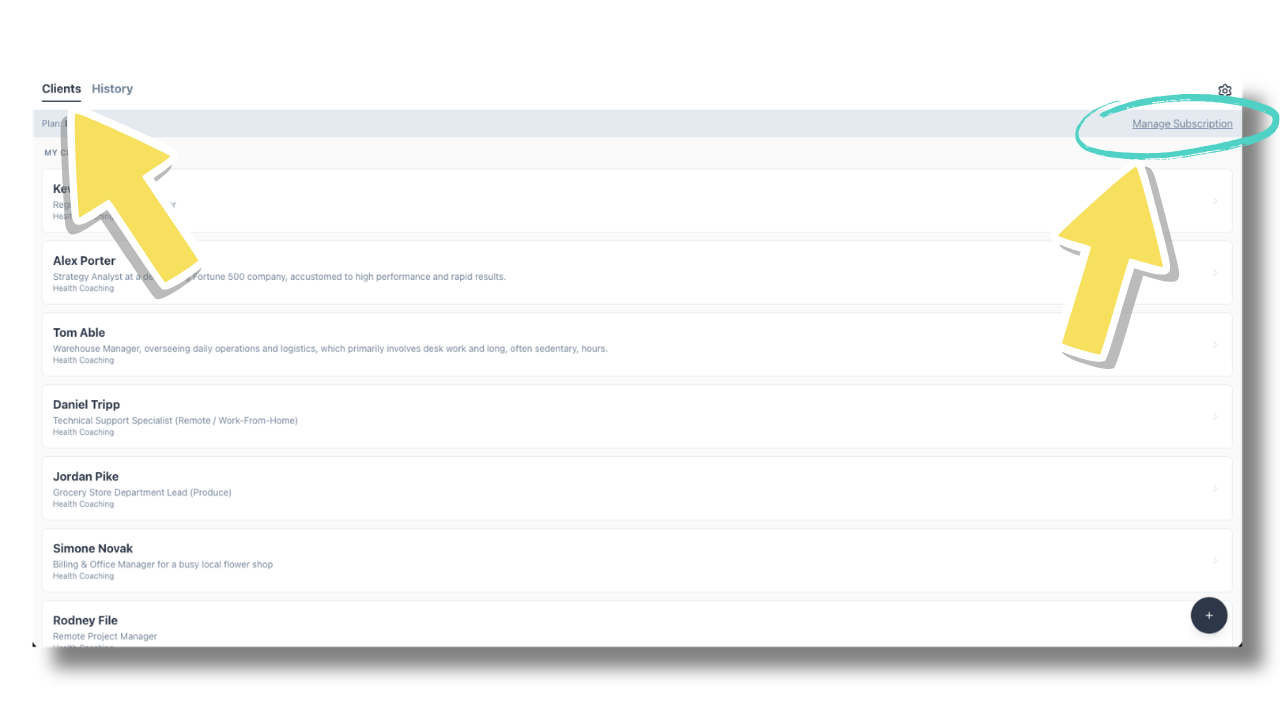
Accessing Subscription Settings: In your Client Library dashboard, on the right-hand side of the screen, click Manage Subscription. This will take you to your available plan options.
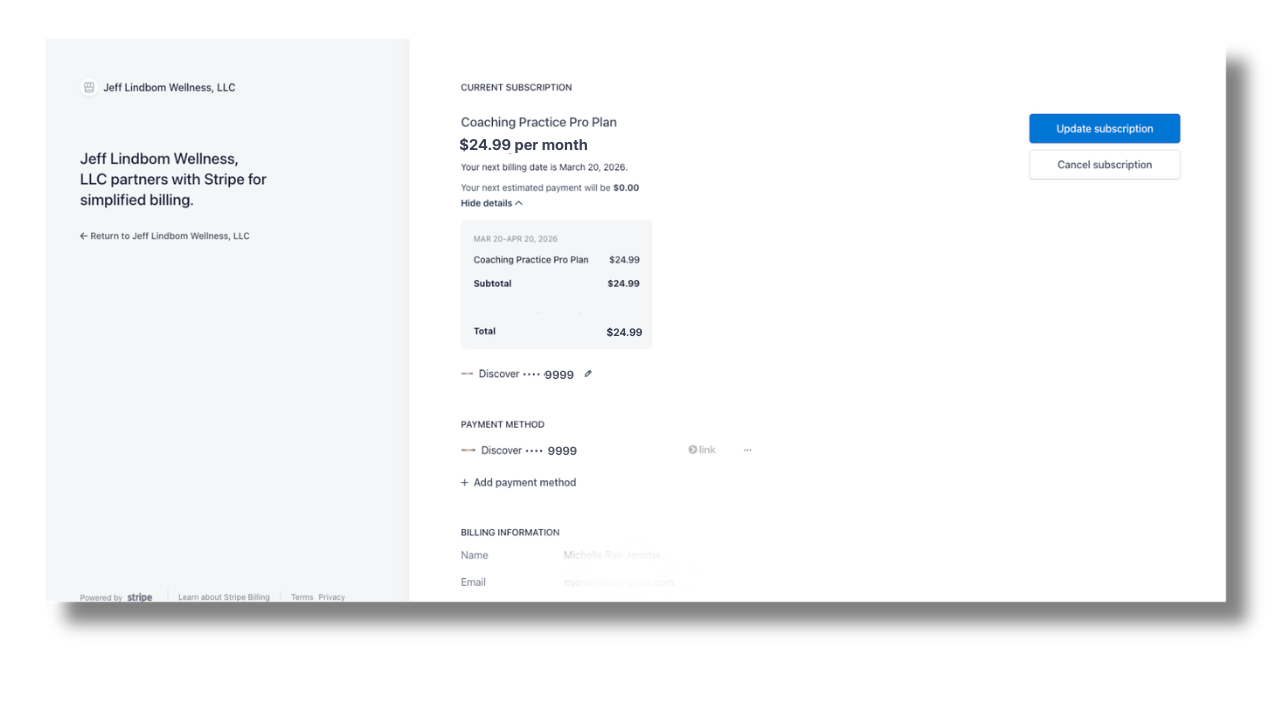
Choosing and Activating Your Plan: Select your preferred plan and complete checkout. All billing is handled securely. Your upgraded minutes and features will be available immediately after confirmation.
Monthly Billing & Renewal
Plans are billed monthly. You’ll receive an email reminder before your subscription renews.
If you ever decide to cancel or change your plan, you can do so through your subscription settings. Your account data and session history remain intact.
Managing Your Subscription
Go to Settings > Manage Subscription to update your payment method, change your plan, or cancel. You’ll be redirected to the Stripe customer portal, where you have full control over your subscription.
You’ll receive an email reminder before your subscription renews each month.
Section 7
Settings & Preferences
Settings Overview
Tap the gear icon in the top-right corner to access Settings. Your Settings page gives you quick access to your account details, usage information, preferences, and support options.
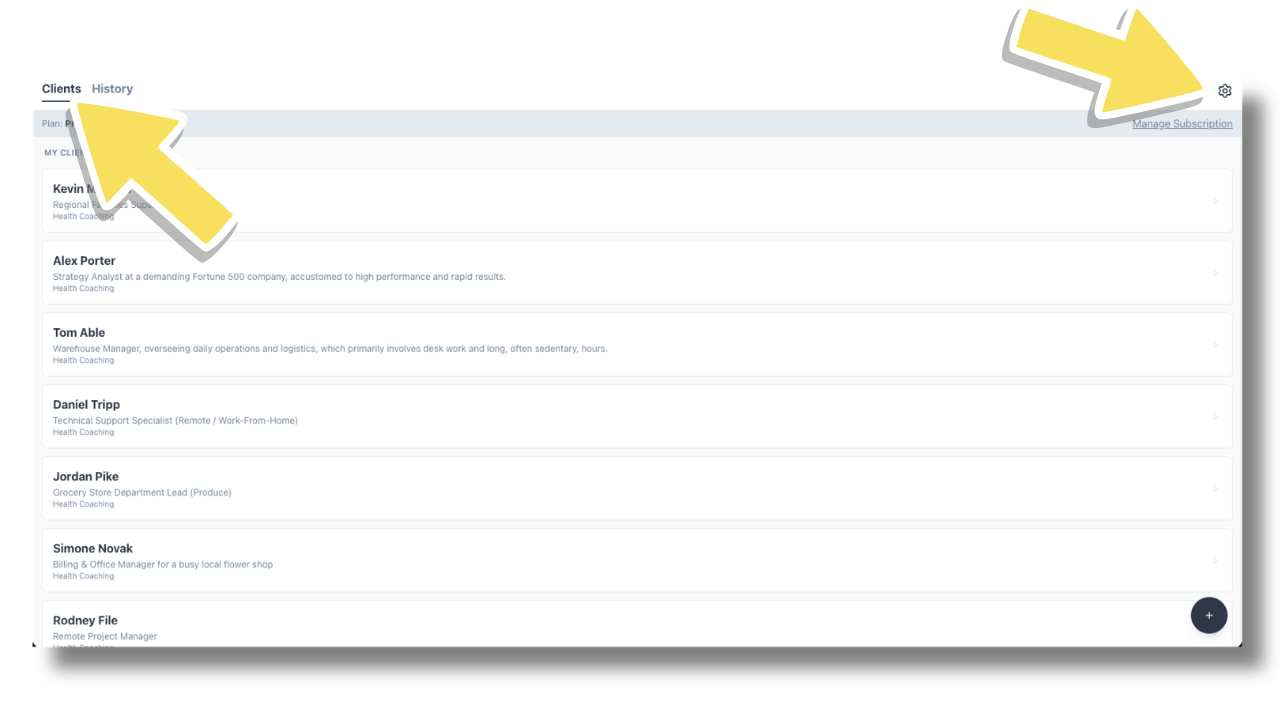
Settings Menu: Click the gear icon in the top-right corner of your dashboard to access your account settings.
Inside the Settings Page
Your Settings page includes the following sections:
Account
- Registered email address
- Current subscription plan
Usage
Track your:
- Remaining minutes
- Minutes used
- Subscription renewal date
Preferences
Customize your experience:
- Toggle email notifications on or off
- Switch between Light Mode and Dark Mode
Help & Support
- About information
- Support resources
Delete Account
At the bottom of the page, you'll find the Delete Account option.
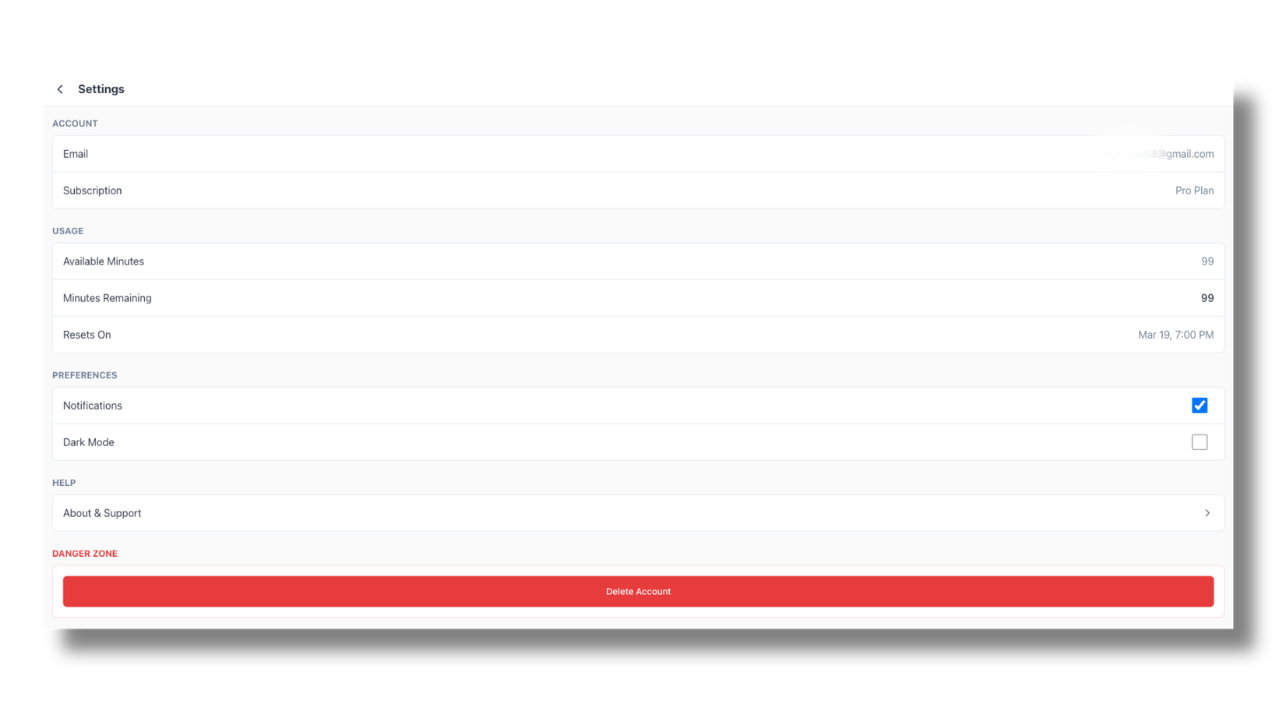
Settings Page Overview: Manage your account, usage, preferences, and support options.
Section 8
Frequently Asked Questions
Below are answers to common questions about using an AI coaching simulator to practice coaching conversations and develop real-world coaching skills.
What is an AI coaching simulator?
An AI coaching simulator allows you to practice coaching conversations with an AI-powered client using your voice. Instead of classroom exercises or selecting canned responses in a scenario, you practice through an actual coaching session. The AI client responds to your approach, adapts based on how you coach, and creates realistic scenarios to help you build skill through repetition.
Can I practice sales calls and discovery conversations?
Yes. Sales Call is one of the built-in session types. You can practice building rapport, handling objections, and guiding prospects toward next steps — as many times as you need.
Can I use this to prepare for health coaching certification exams?
This platform can be a strong supplement to your certification training. Practicing motivational interviewing techniques, open-ended questioning, and active listening in a live voice setting builds fluency. The more repetitions you complete, the more naturally these skills show up in real sessions.
How realistic are the AI clients?
AI clients are designed to respond dynamically to your coaching approach. They may show ambivalence, resistance, overconfidence, or openness depending on how the conversation unfolds, as well as how you craft the scenario and the difficulty level selected. Intermediate scenarios tend to display ambivalence, while advanced scenarios tend to introduce more resistance. While you may occasionally notice AI-specific patterns, you can change AI models on the Premium plan to experience entirely different conversation styles and pacing, ensuring meaningful, varied practice reps.
Are my sessions saved?
Yes. Every session transcript is saved automatically. You can review it, add personal notes, and generate AI feedback from the Session Summary page.
Does the AI client remember previous sessions?
No. Each session is independent. If you want to simulate an ongoing coaching relationship, you can add a previous action item at the beginning of a Coaching Session to create context manually.
How is session feedback generated?
After each session, an AI-powered coaching supervisor reviews your transcript using the Motivational Interviewing (MI) framework. It evaluates your use of core MI skills like OARS (Open questions, Affirmations, Reflective listening, and Summarizing), your ability to evoke change talk, and how well you embody the MI spirit (Partnership, Acceptance, Compassion, and Evocation). The feedback provides specific, actionable suggestions based on your exact dialogue, helping you identify where you fell into common traps—like the "righting reflex" or the "question-answer trap"—and offering concrete examples of what you could try next time to deepen the conversation.
What types of coaches is this built for?
The platform is designed primarily for health and life coaches. There are preset clients for both types of coaches, and custom clients allow you to create scenarios tailored to your specific coaching niche.
Is this platform suitable for new coaches?
Yes. Start with a preset client on Beginner difficulty. The goal is not perfection — it’s repetition. Practicing with an AI client can help you build awareness of your natural coaching tendencies and really feel comfortable going into your first call.
Need Help?
If you run into any issues or have questions, reach out to us directly:
- Email: jeff.lindbom@jefflindbomwellness.com
- Visit the Support page inside the app (tap the menu > Support)
* Coaching Practice is for educational and practice purposes only. All clients are AI personas.